The Downloads folder is my catch-all location for everything. It is of course for downloads from any web browser, it is my default folder for new Finder windows so I can start a new Finder window or open the Finder to quickly view it and it is the save location in most apps. Since I hate using the Desktop to store anything, I’ve also changed it to be the location for screenshots.
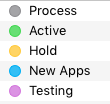 It is also the only place I use Finder tags. I have setup several tags to keep my Downloads folder organized and into groups of items. I have the following tags setup: Process for items that need to be moved into different folders, Active for items that I am currently working with for work projects or personal. Hold for items that I will need to come back to in the near-term. New Apps for newly downloaded applications that I am trying out that I do not want to throw into my Applications folder and get lost. Testing for anything that I am testing out, like a new version of an app (can be interchanged with the New Apps tag in some cases).
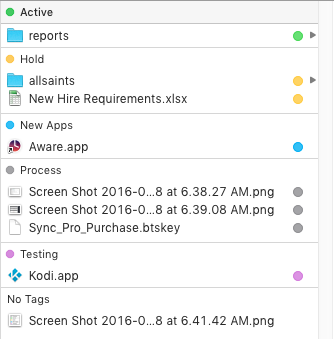
To keep my Downloads folder organized, I Arrange by Tags to keep all tagged items grouped together. Then any new items that are saved to the folder fall below in the “No Tags” section to be easily found.
I do use Hazel for several tasks, however I do not use it to automatically move items out of my Downloads folder. I still prefer to manually move and rename things like statements, but I can see that changing one day.
